Settings
 Fast Delivery
 Free Shipping
 Incoterms
 Payment Types


 Marketplace Product

Make a Phone Call Using the SIM900 GSM Shield & Arduino - Visuino Tutori
2026-04-01 | By Ron Cutts
License: GNU Lesser General Public License Microcontrollers Wifi Arduino ESP32
In this tutorial, you will learn how to make a phone call using the SIM900 GSM Shield and Visuino.
With one button, you will be able to start a call and end the call with the second button.
You will also learn how to use the "Serial Software" component in Visuino.
Watch the video!
Learn more about Visuino: What is Visuino
What You Will Need
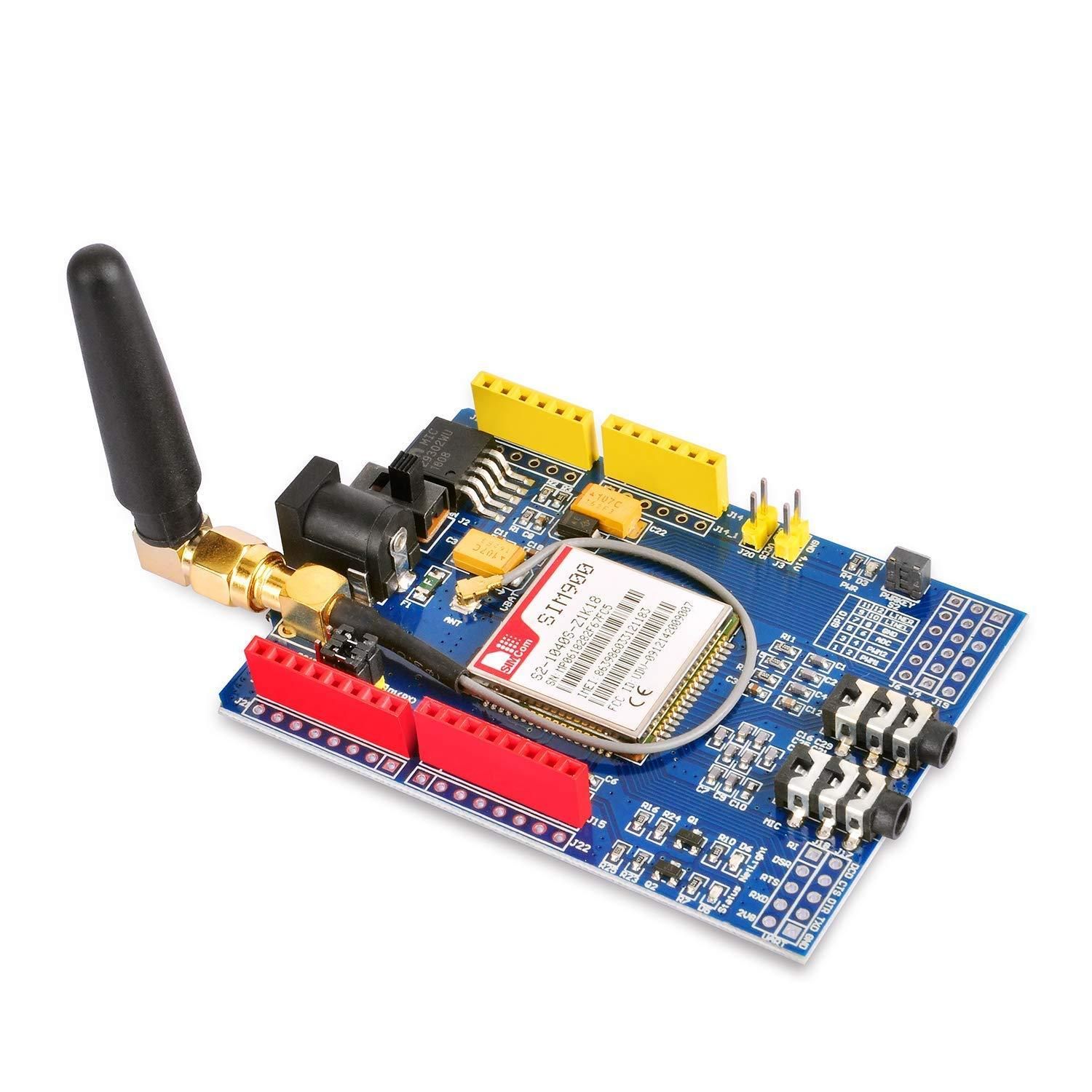
SIM card (You should disable the PIN request on the SIM card before using it with the GSM shield)
Breadboard
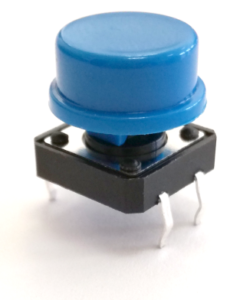
2X button
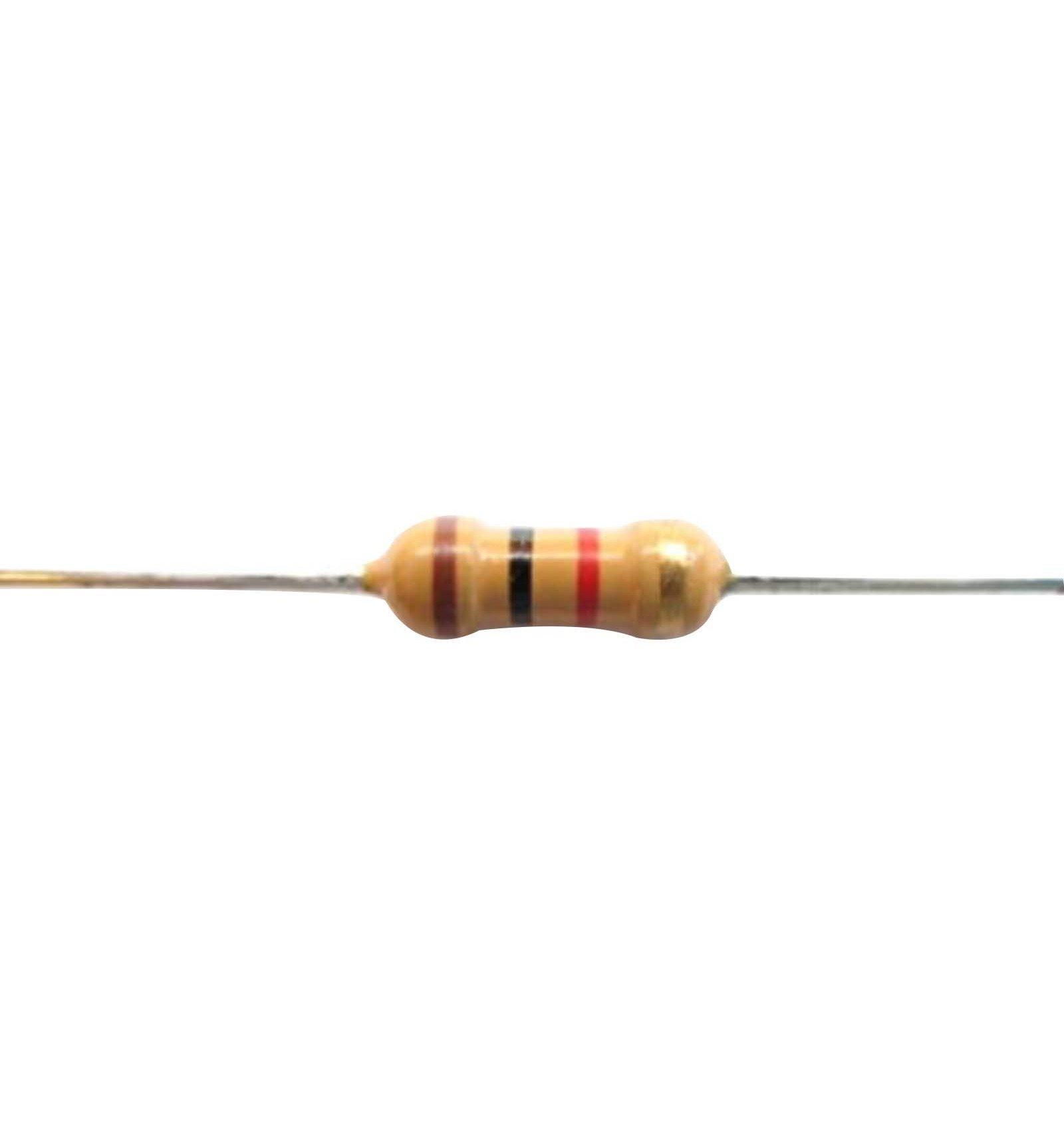
2X 1kΩ resistor
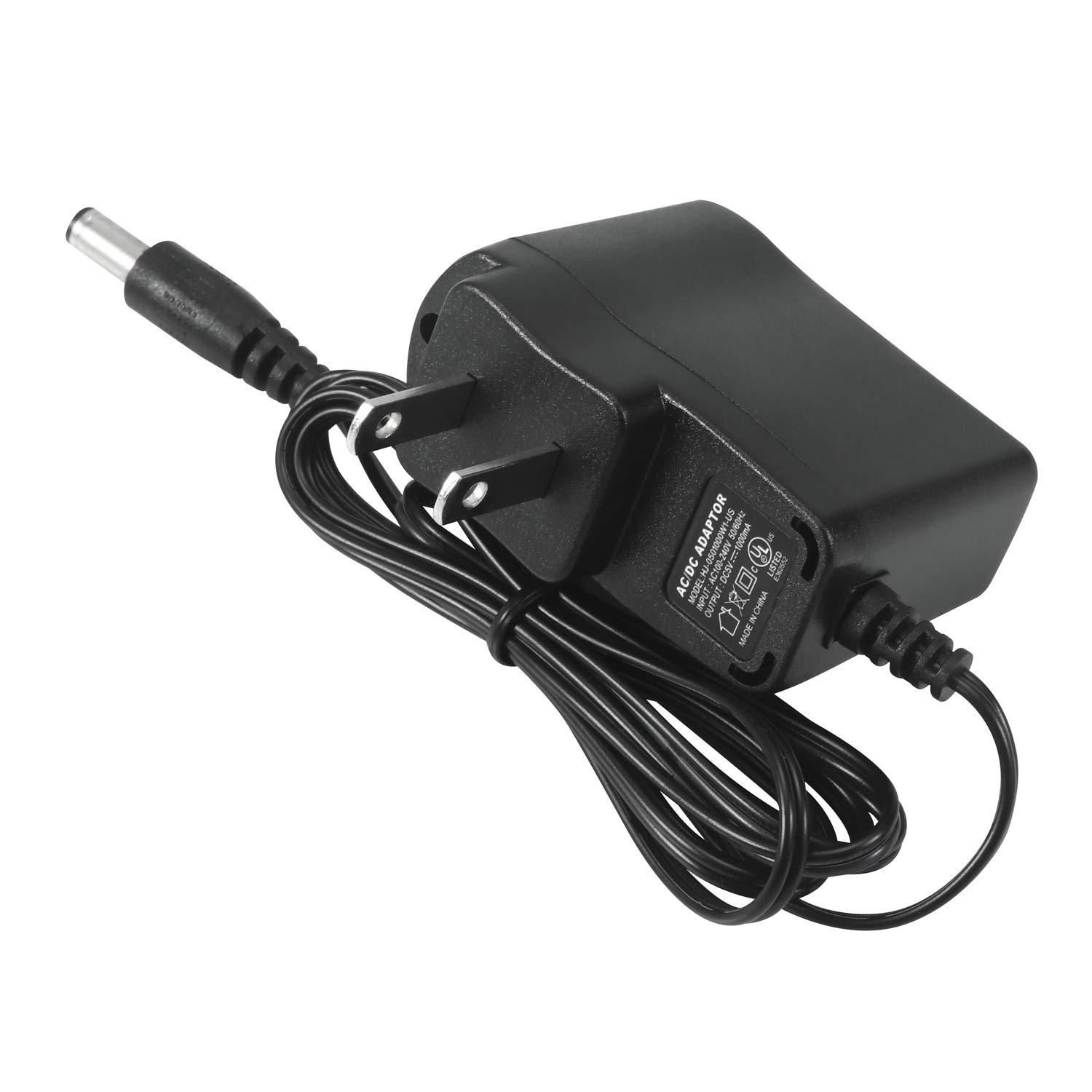
5V power supply with enough amps for the shield
Visuino program: Download Visuino

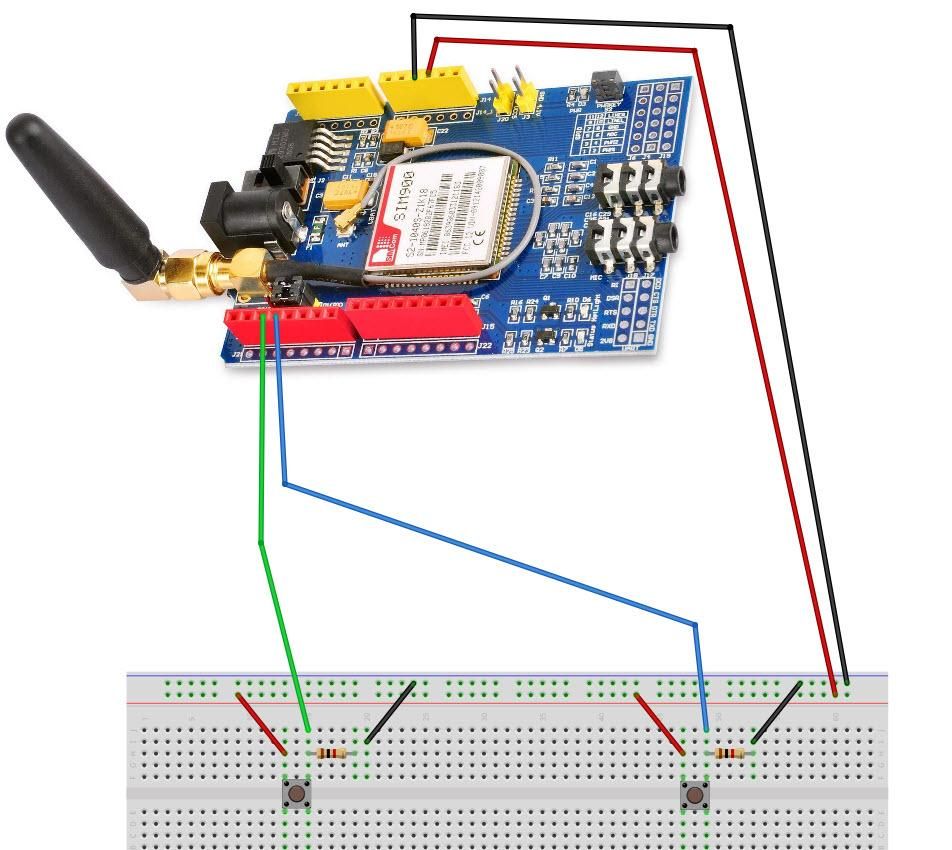
The Circuit
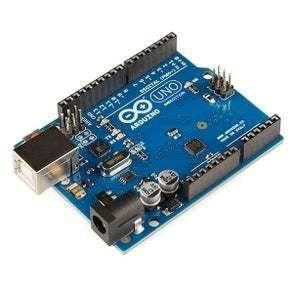
Connect the SIM900 GSM Shield to the Arduino
Connect Arduino pin [5V] to breadboard positive pin [Red line]
Connect Arduino pin [GND] to breadboard negative pin [Black line]
Connect Arduino digital pin [2] to button1 on the breadboard and to resistor1.
Connect the other side of the resistor 1 to the breadboard pin [GND]
Connect the other pin of button 1 to the breadboard positive pin [5V]
Connect Arduino digital pin [2] to button1 on the breadboard and to resistor1.
Connect the other side of the resistor 1 to the breadboard pin [GND]
Connect the other pin of button 1 to the breadboard positive pin [5V]
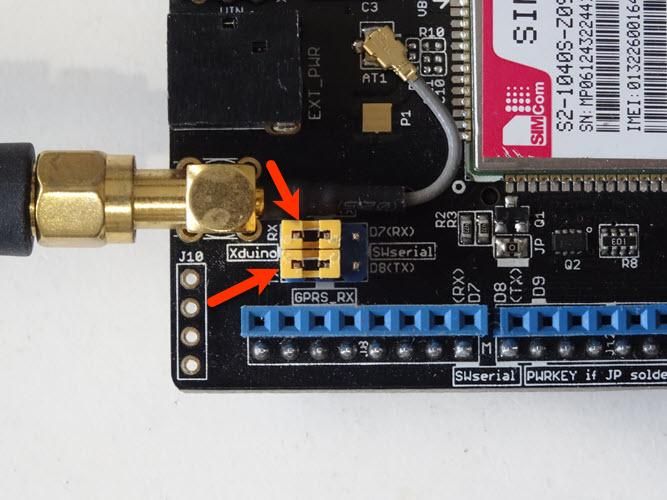
Connect with the Jumpers on the shield pins D8 (RX) & D7 (TX) as you see it in the picture
Make sure that the antenna is connected to the shield
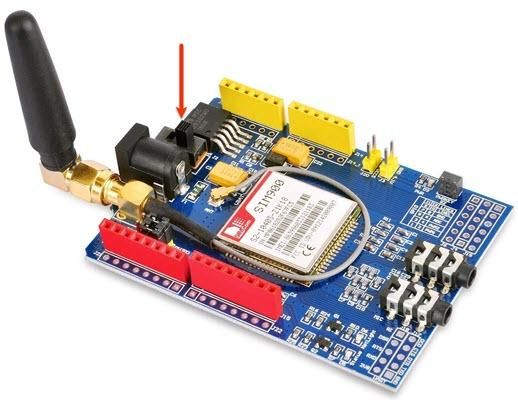
Connect the 5V Power Supply to the shield, and set the switch on the shield to the External Power (See the picture)
Once the Power is connected, hold the Power button for 2 seconds
Once the connection with the Network is established, the LED will blink every 3 seconds
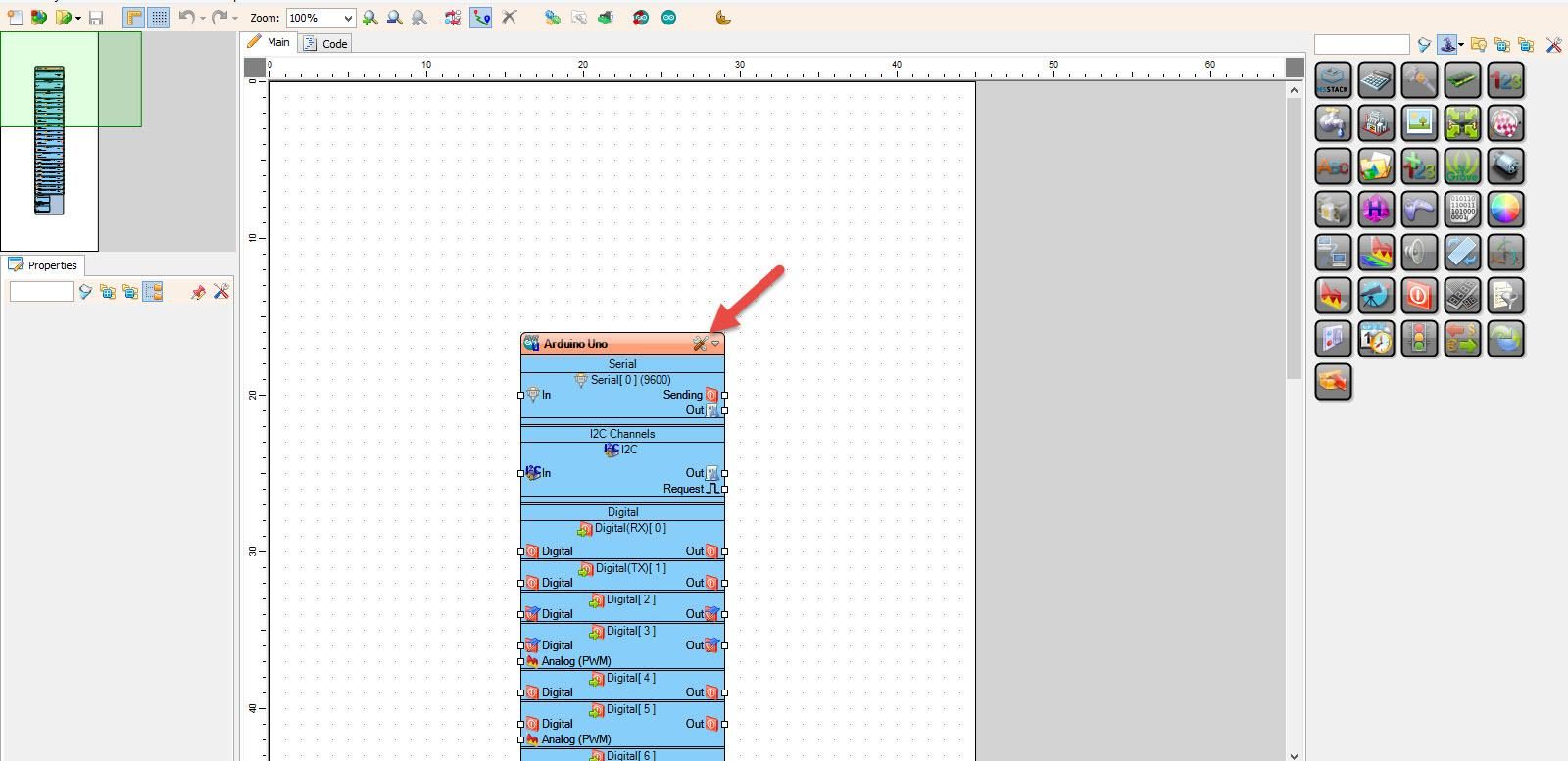
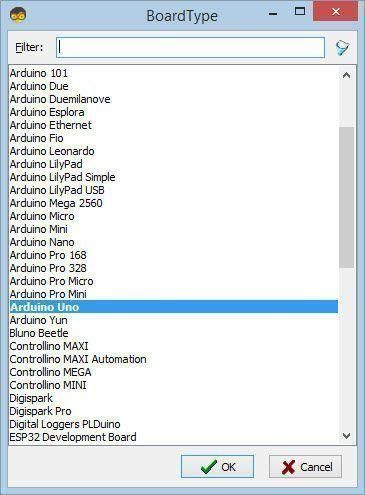
Start Visuino, and Select the Arduino UNO board type.
Start Visuino as shown in the first picture. Click on the "Tools" button on the Arduino component (Picture 1) in Visuino. When the dialog appears, select "Arduino UNO" as shown in Picture 2
In Visuino, Add Components
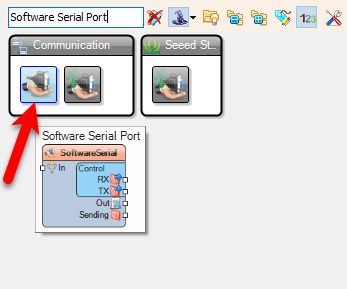
Add "Software Serial Port" component
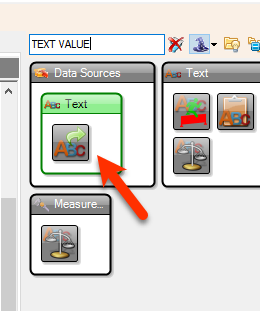
Add "Add "Text Value" component
Add 2X "Debounce Button" components.
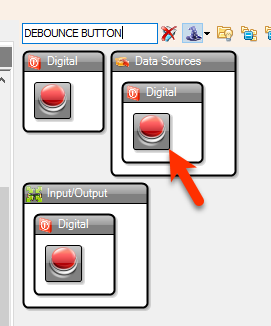
In Visuino Set Components
Double-click on "TextValue1," and in the Elements window, drag "Set Value" to the left side, and in the properties window, set "Value" to ATDP+ PHONE_NUMBER (International Format) & add a semicolon at the end
Example: ATDP+38470987541;
In the Elements window, drag another "Set Value" to the left side, and in the properties window, set "Value" to ATH
Example: ATH
Close the Elements window
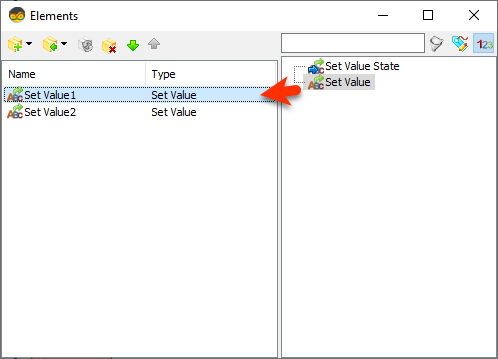
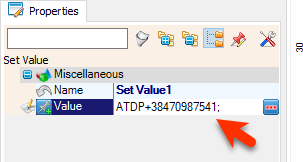
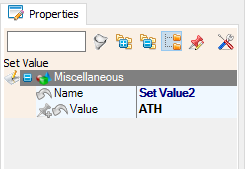
In Visuino Connect Components
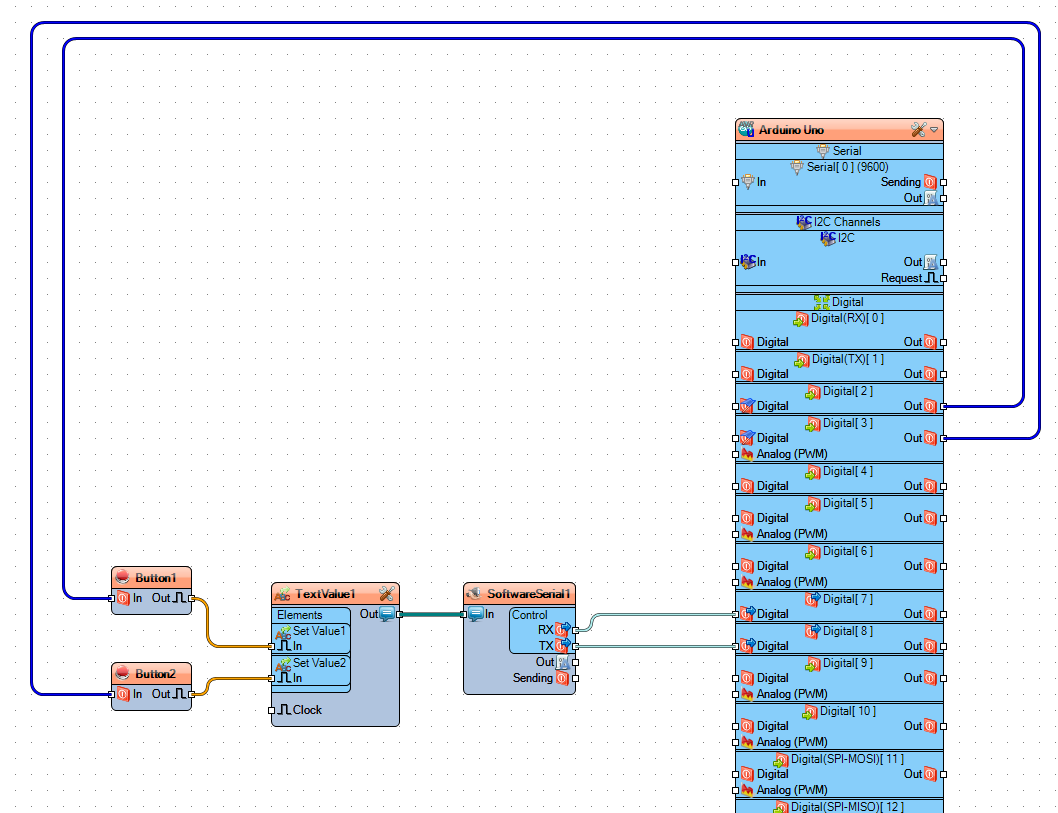
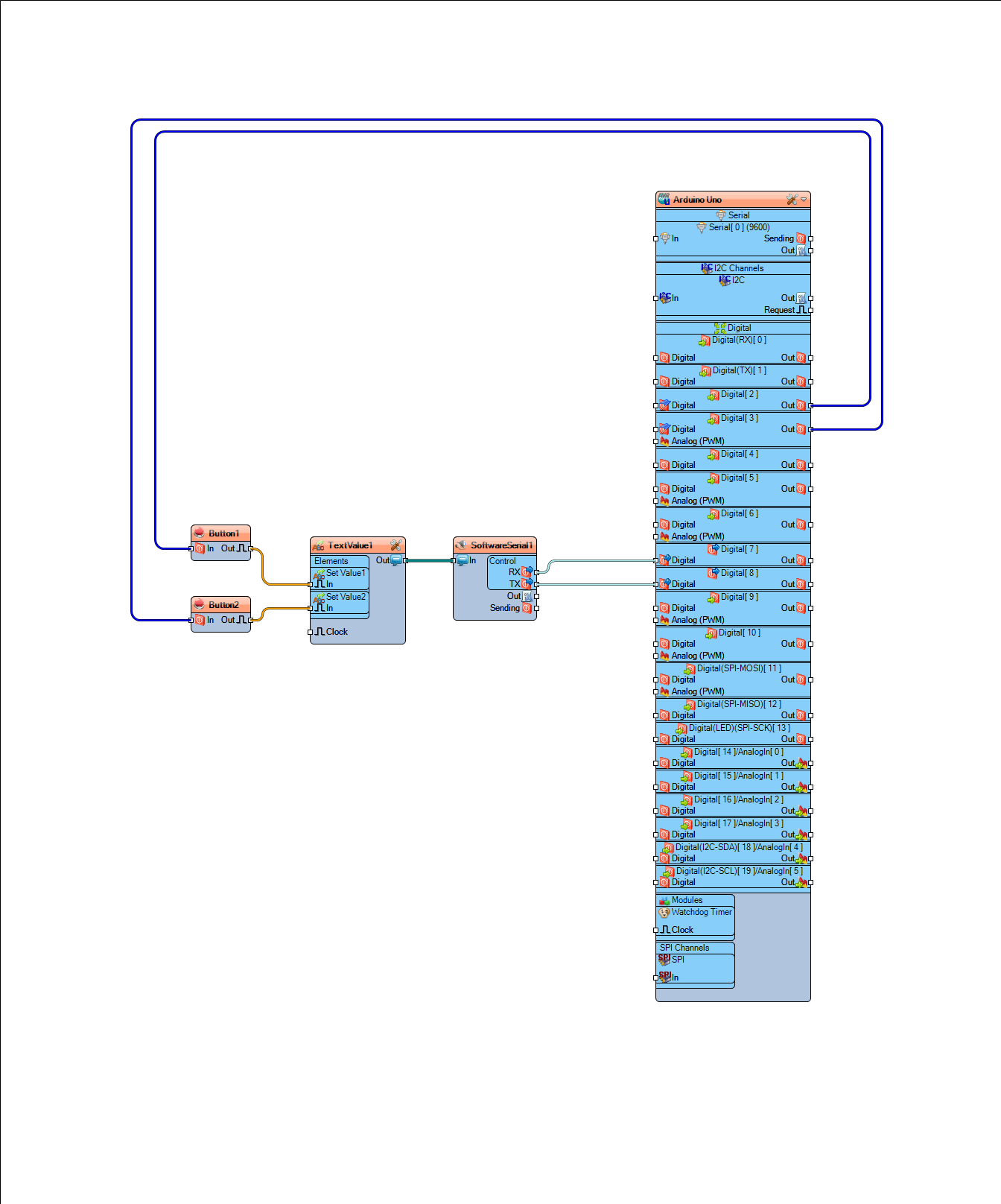
Connect Arduino digital pin [2] to "Button1" pin [In]
Connect Arduino digital pin [3] to "Button2" pin [In]
Connect "Button1" pin [Out] to "TextValue1" > "Set Value1" pin [In]
Connect "Button2" pin [Out] to "TextValue1" > "Set Value2" pin [In]
Connect "TextValue1" pin [Out] to "SoftwareSerial1" pin [In]
Connect "SoftwareSerial1" pin [RX] to Arduino Digital pin [7]
Connect "SoftwareSerial1" pin [TX] to Arduino Digital pin [8]
Generate, Compile, and Upload the Arduino Code
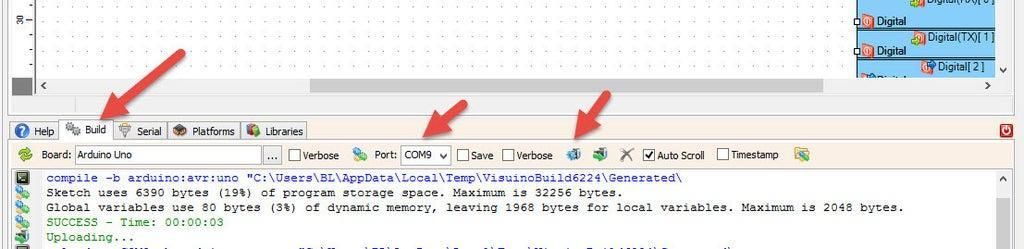
In Visuino, at the bottom, click on the "Build" tab, make sure the correct port is selected, then click on the "Compile/Build and Upload" button.
Play
When you power the Shield, wait a bit for the connection with the network to be established. Once the connection is established, the LED on the Shield will blink every 3s.
Now you can press a button, and you will make a call. To end the call, just press the other button.
Congratulations! You have completed your GSM project with Visuino. Also attached is the Visuino project that I created for this. You can download and open it in Visuino: https://www.visuino.eu
Using the Serial Window to Send Commands
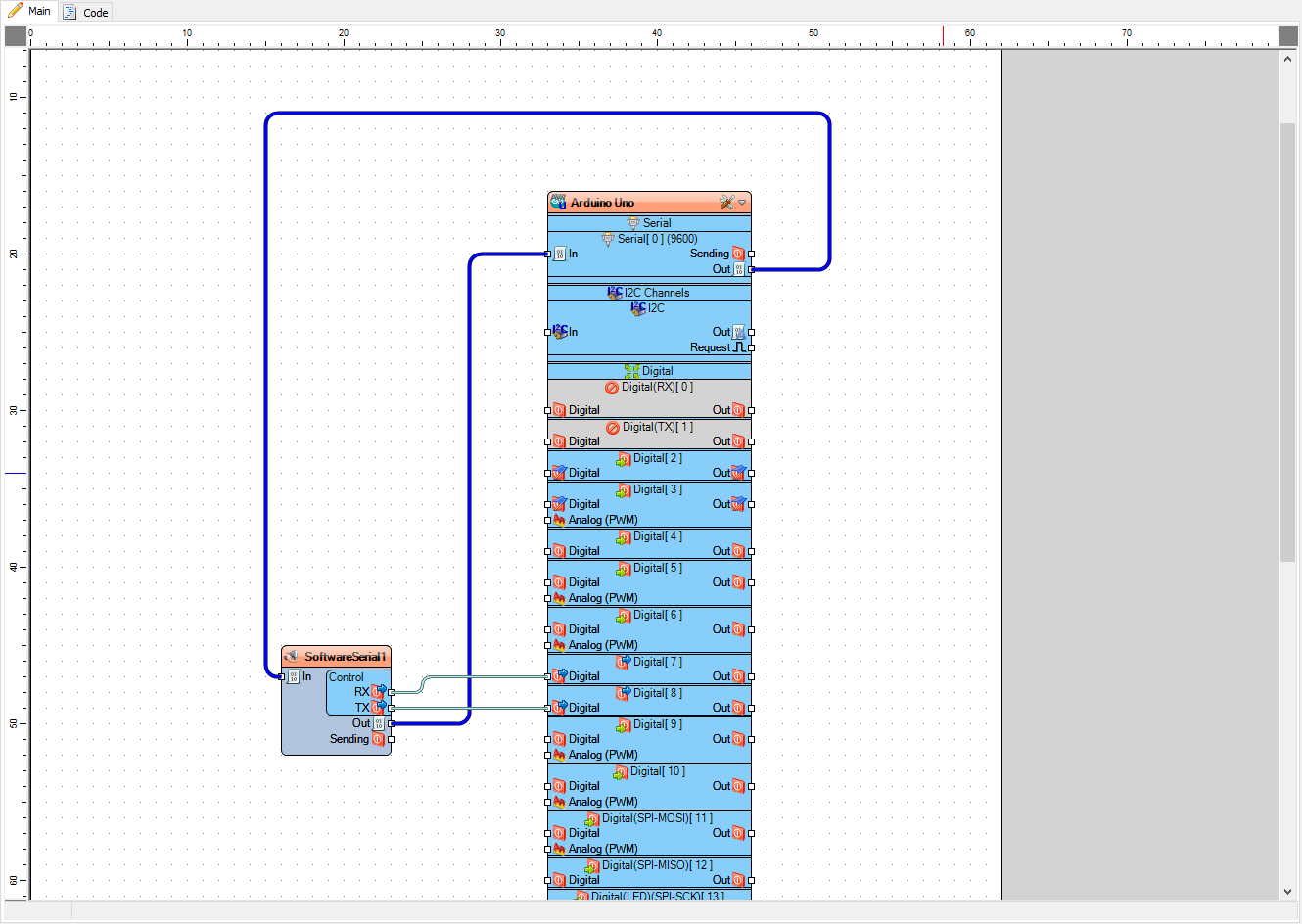
Add "Software Serial Port" component
Connect Arduino Serial pin [Out] to "SoftwareSerial1" pin [In]
Connect "SoftwareSerial1" pin [RX] to Arduino Digital pin [7]
Connect "SoftwareSerial1" pin [TX] to Arduino Digital pin [8]
Connect "SoftwareSerial1" pin [Out] to Arduino Serial pin [In]
Upload the project (see the step Generate, Compile, and Upload The Arduino Code), and in Visuino select the "Serial" tab, select the Port, and click the "Connect" button.
Once connected, you can start sending the commands to the module by typing, for example: AT;
This will ask the GSM Shield for the current status
Also attached is the Visuino project
Troubleshooting
Supplying the SIM900 shield with enough power is very important; if it does not get enough power, it might turn off
AT command must have a semicolon at the end, or it might return the message "NO CARRIER"
Some mobile operators might block the GSM modules; in that case, contact your mobile operator and ask for more information.
Extra
You can connect the headphones and a microphone to the audio jack connectors on the shield.
Instead of the buttons, you could connect a sensor, for example, a PIR motion detection sensor, to trigger a phone call every time movement is detected. Check this tutorial for more information: https://www.instructables.com/How-to-Use-PIR-Sensor-and-a-Buzzer-Module-Visuino-/
Experiment with other AT commands:
Command ATA – Accepts the incoming call.
Command ATH – Hangs up the call.
Command AT+CMGF=1\r will set the SIM900 shield to text mode
Command AT+CMGS=PHONE-NUMBER (international format) will send SMS to a number
Command AT+CMGR=1\r will read the first SMS from the inbox
Command AT+CMGR=2\r will read the second SMS from the inbox
Command AT+CMGR=ALL\r will read all SMS from the inbox