Settings
 Fast Delivery
 Free Shipping
 Incoterms
 Payment Types


 Marketplace Product

Arduino Display Date & Time on MAX7219 8-digit Digital LED Display Using
2026-04-30 | By Ron Cutts
License: GNU Lesser General Public License Displays Microcontrollers Wifi Arduino ESP32
In this tutorial, we will learn how to display date and time using the RTC DS1307 module, the MAX7219 8-digit digital LED display, and Visuino.
Watch the video.
Learn more about Visuino: What is Visuino
What You Will Need
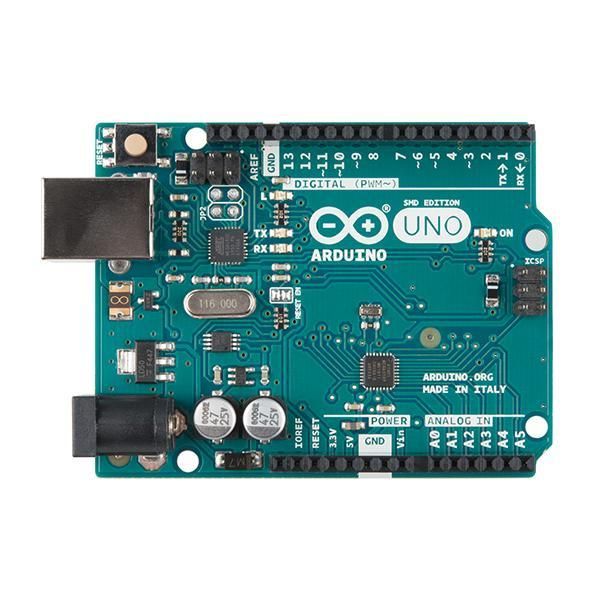
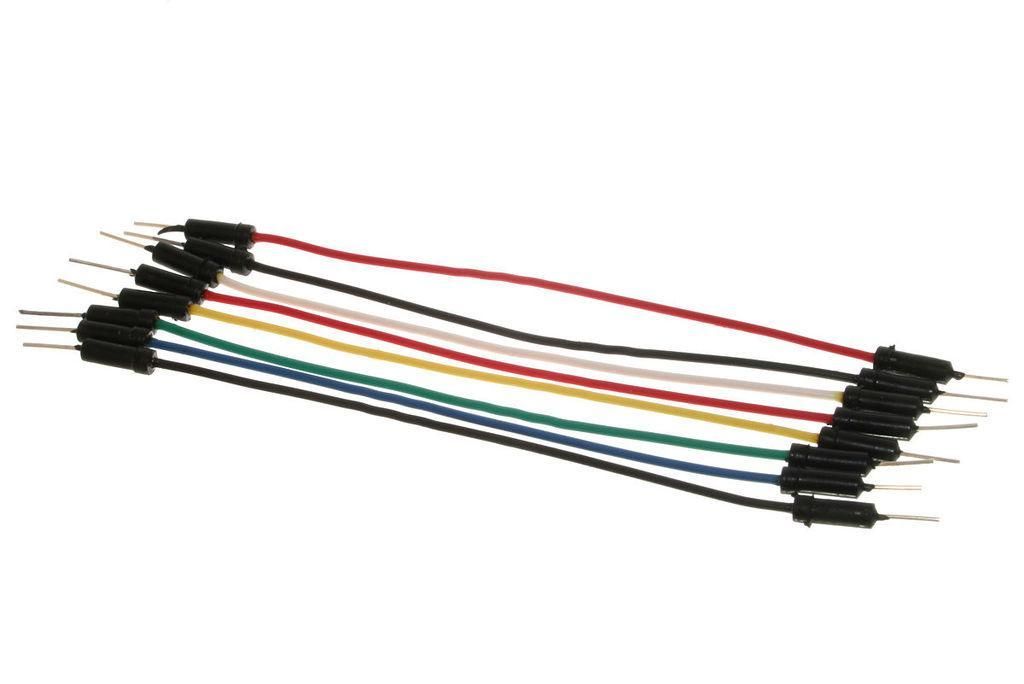
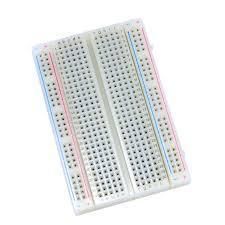
Arduino UNO (or any other Arduino)
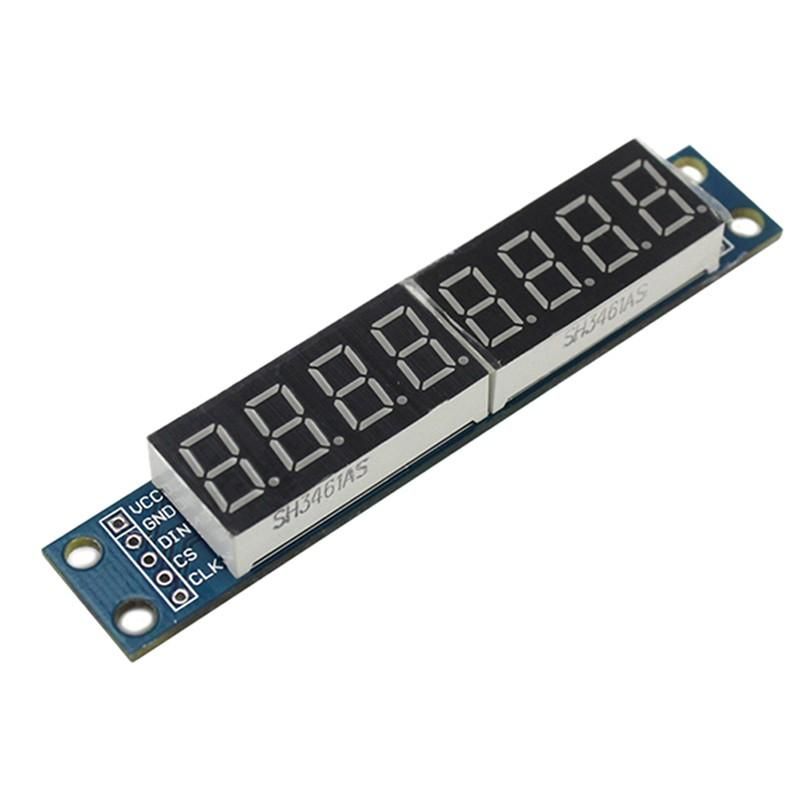
Max7219 Led Dot Matrix 8-digit Digital Display Control Module
Visuino program: Download Visuino
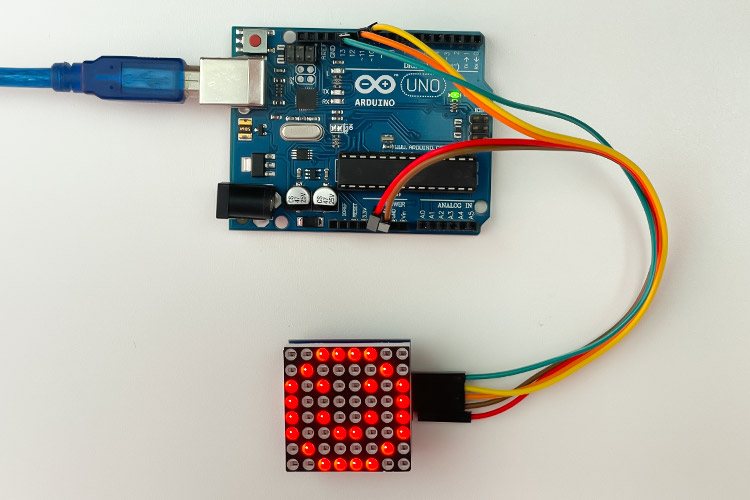
The Circuit
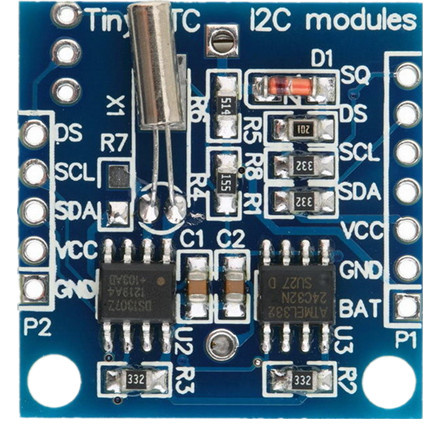
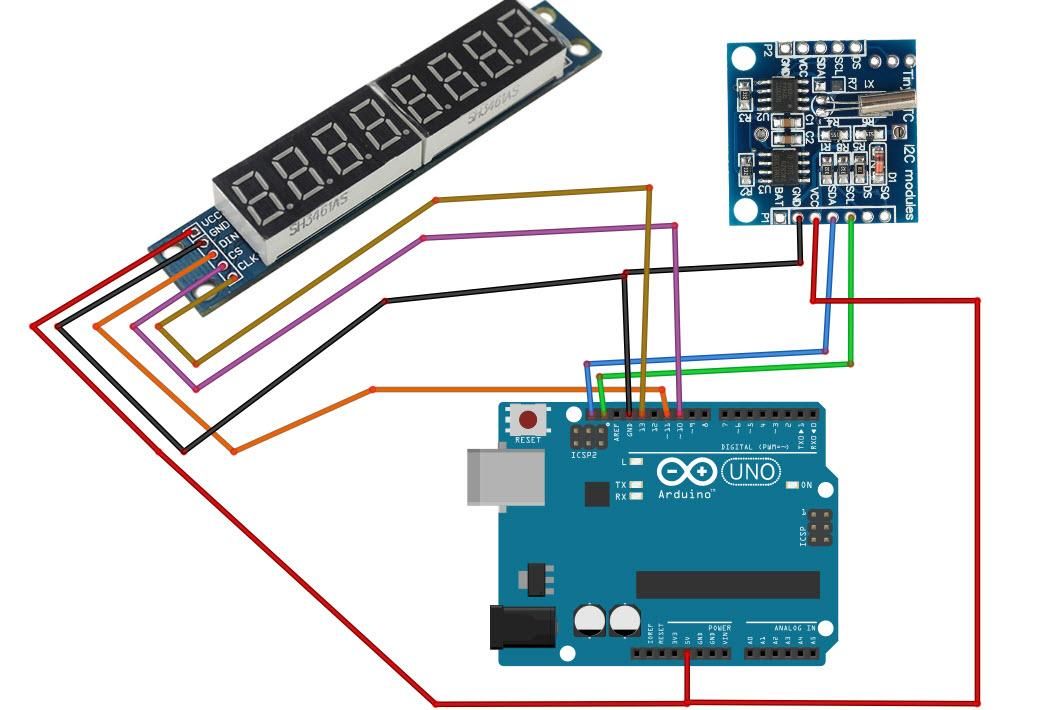
Connect RTC DS1307 module pin[VCC] to Arduino pin[5V]
Connect RTC DS1307 module pin[GND] to Arduino pin[GND]
Connect the RTC DS1307 module pin[SDA] to the Arduino pin [SDA].
Connect RTC DS1307 module pin[SCL] to Arduino pin[SCL]
Connect LED module pin[VCC] to Arduino pin[5V]
Connect LED module pin[GND] to Arduino pin[GND]
Connect LED module pin[DIN] to Arduino digital pin[11]
Connect LED module pin[CS] to Arduino digital pin[10]
Connect LED module pin[CLK] to Arduino digital pin[13]
Start Visuino, and Select the Arduino UNO Board Type
The Visuino: https://www.visuino.eu also needs to be installed. Download the free version or register for a free trial.
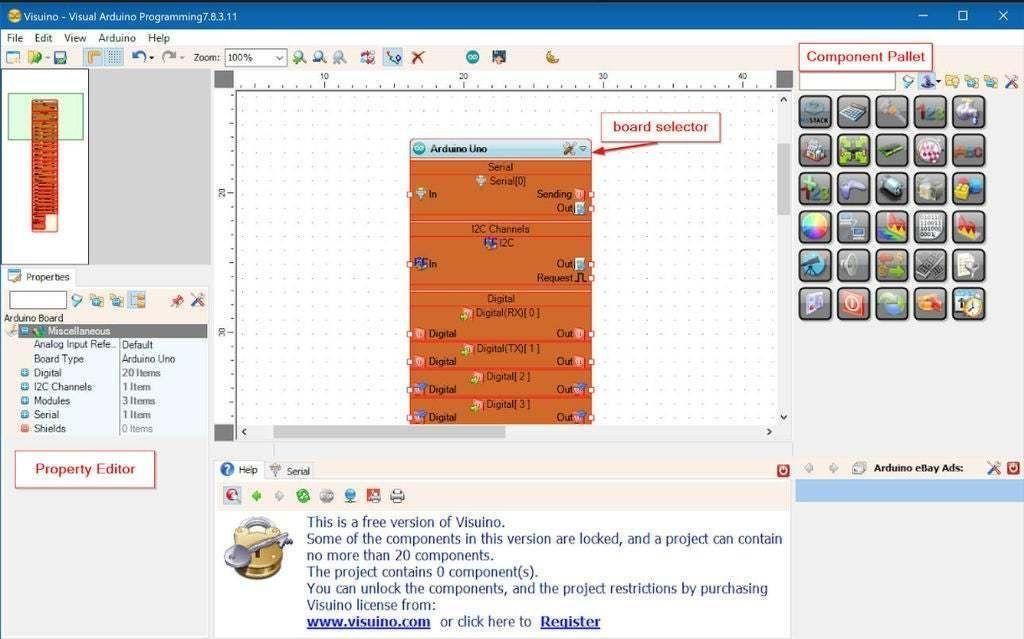
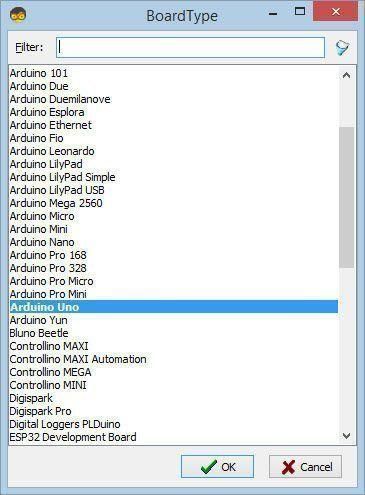
Start Visuino as shown in the first picture. Click on the "Tools" button on the Arduino component (Picture 1) in Visuino. When the dialog appears, select "Arduino UNO" as shown in Picture 2
In Visuino Add Components
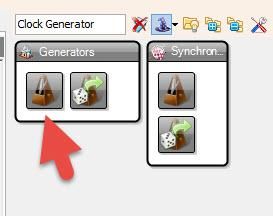
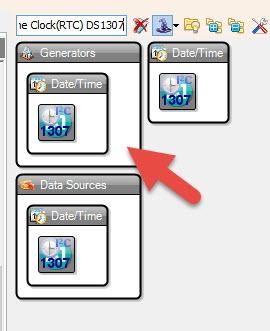
Add "Clock Generator" component
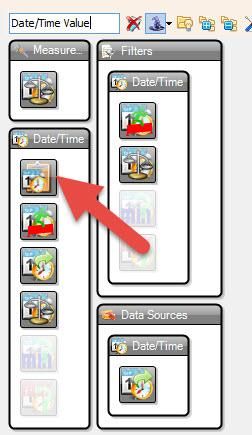
Add "Date/Time Value" component
Add ""Real Time Clock(RTC) DS1307" component
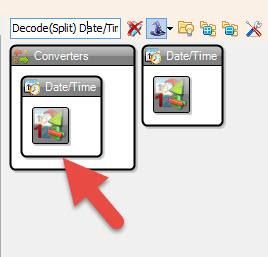
Add "Decode(Split) Date/Time" component
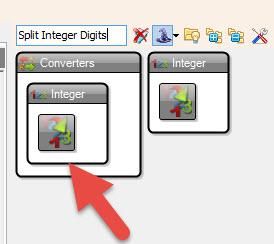
Add 2X "Split Integer Digits" component
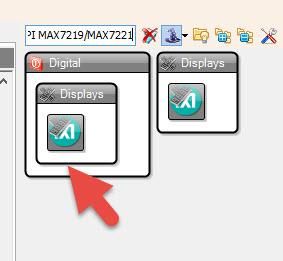
Add "Maxim LED Display Controller SPI MAX7219/MAX7221" component
In Visuino Set Components
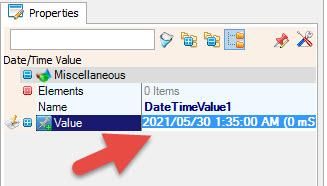
Select "DateTimeValue1" and in the properties window set Value to your current Date and Time
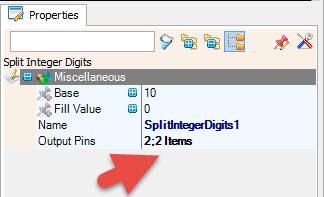
Select "SplitIntegerDigits1" and in the properties window, set Output Pins to 2
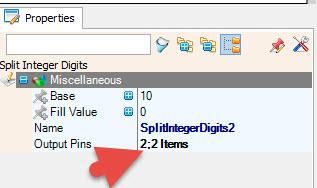
Select "SplitIntegerDigits2" and in the properties window, set Output Pins to 2
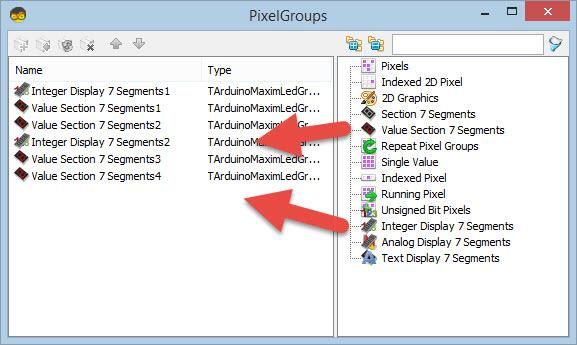
Double click on the "LedController1" and in the "PixelGroups" window, drag:
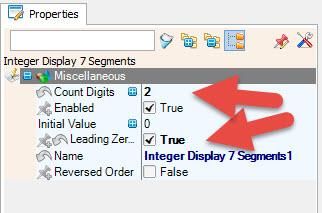
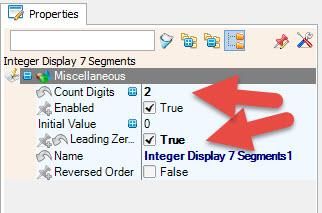
"Integer Display 7 Segments" to the left side, and in the properties window, set "Count Digits" to 2 and "Leading Zeroes" to True
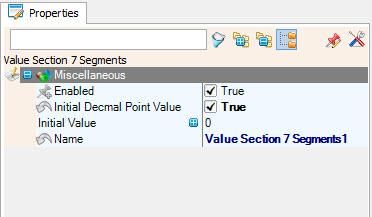
"Value Section 7 Segments" to the left side, and in the properties window, set "Initial Decmal Point Value" to True
"Value Section 7 Segments" to the left side
"Integer Display 7 Segments" to the left side, and in the properties window, set "Count Digits" to 2 and "Leading Zeroes" to True
"Value Section 7 Segments" to the left side, and in the properties window, set "Initial Decmal Point Value" to True
"Value Section 7 Segments" to the left side
Close the "PixelGroups" window
In Visuino Connect Components
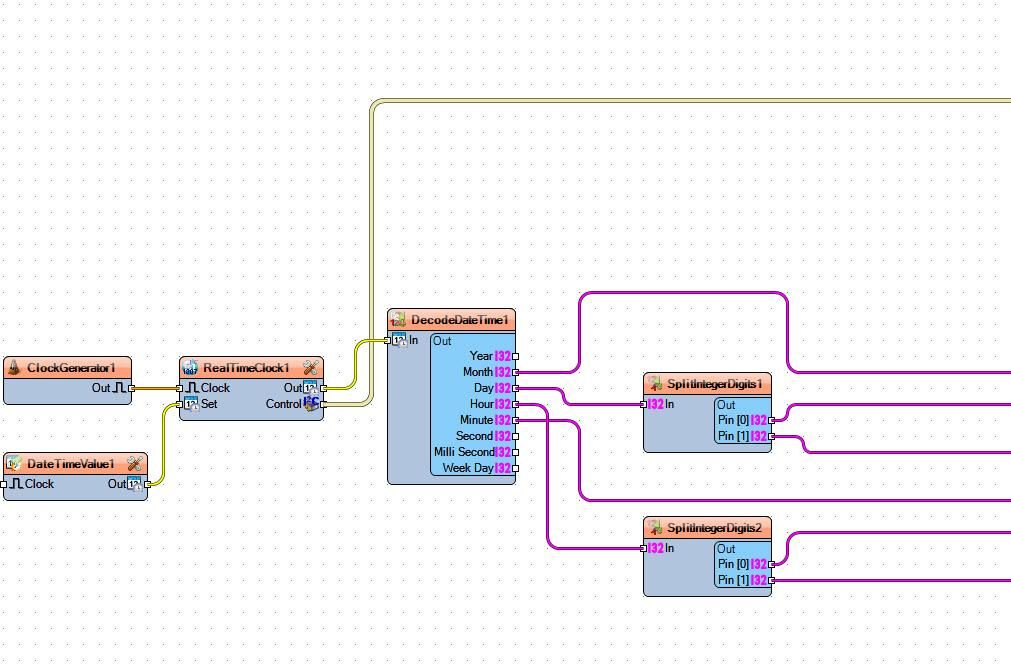
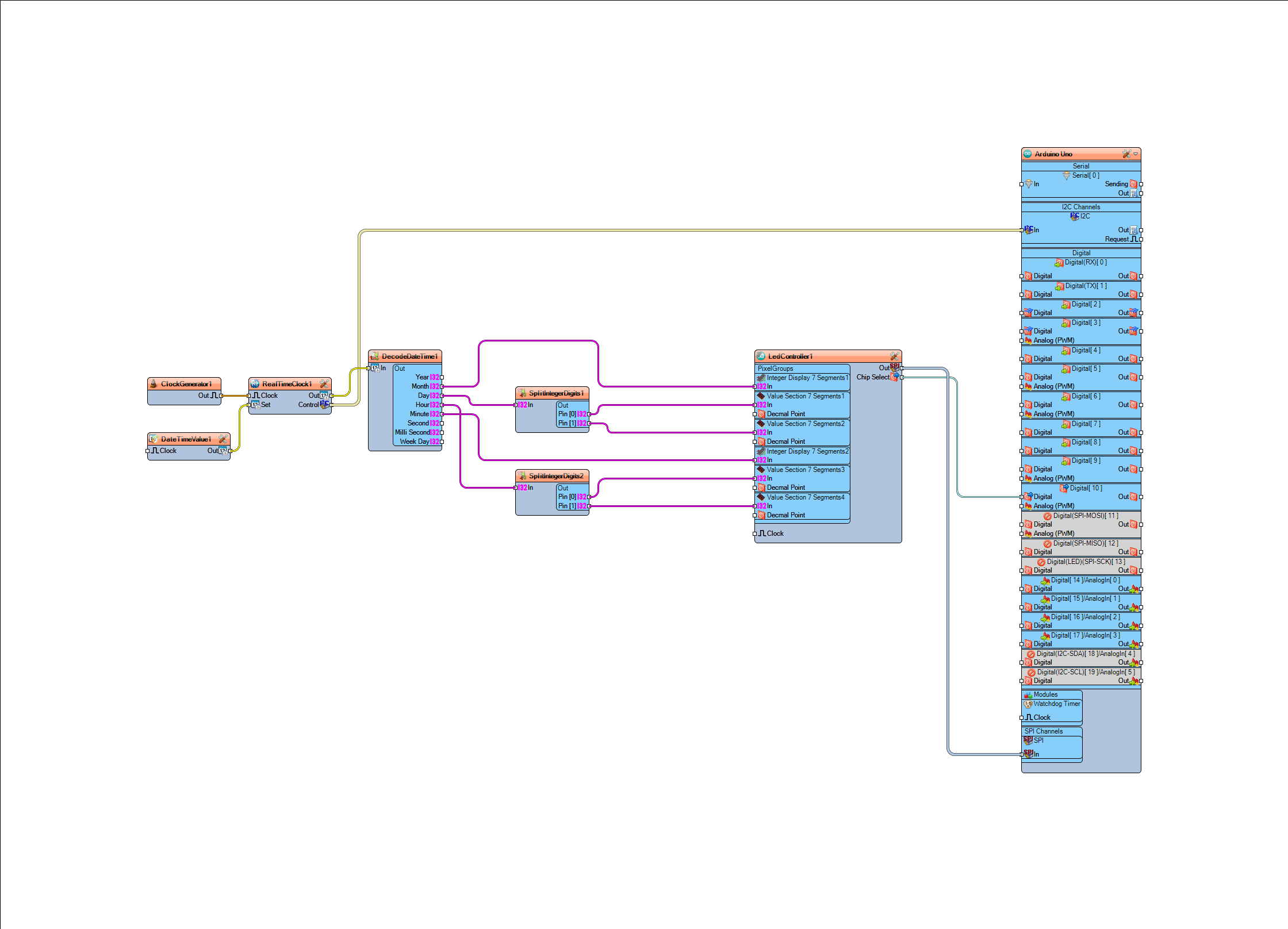
Connect "ClockGenerator1" pin Out to "RealTimeClock1" pin Clock
Connect "DateTimeValue1" pin Out to "RealTimeClock1" pin Set
Connect "RealTimeClock1" pin Out to "DecodeDateTime1" pin In
Connect "RealTimeClock1" pin Control I2C to "Arduino" pin I2C In
Connect "DecodeDateTime1" pin Month to LedController1 > Integer Display 7 Segments1 pin In
Connect "DecodeDateTime1" pin Day to "SplitIntegerDigits1" pin In
Connect "DecodeDateTime1" pin Hour to "SplitIntegerDigits2" pin In
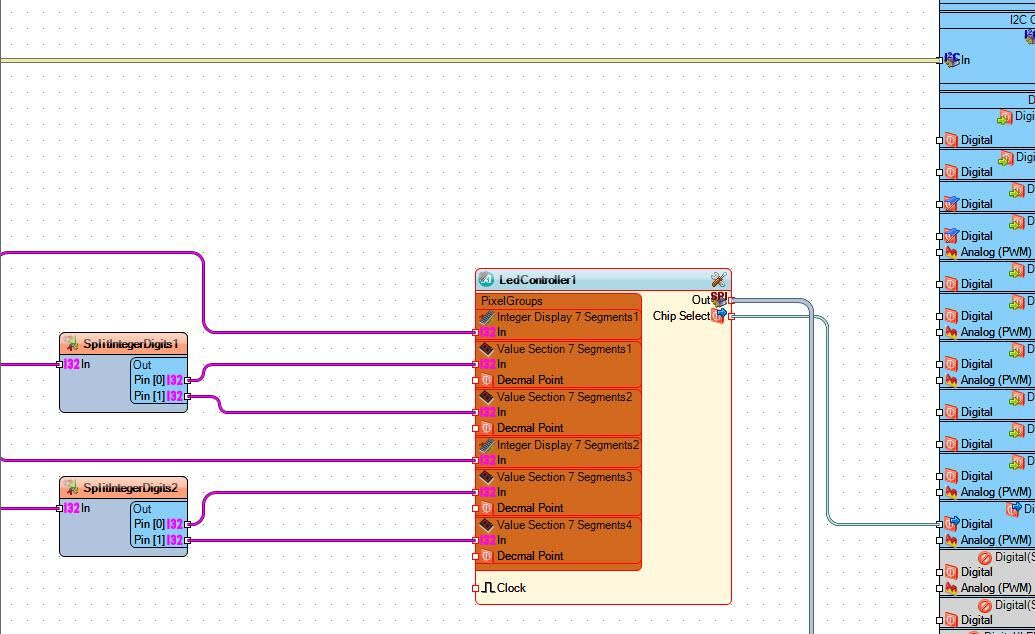
Connect "SplitIntegerDigits1" pin 0 to LedController1 > Value Section 7 Segments1 pin In
Connect "SplitIntegerDigits1" pin 1 to LedController1 > Value Section 7 Segments2 pin In
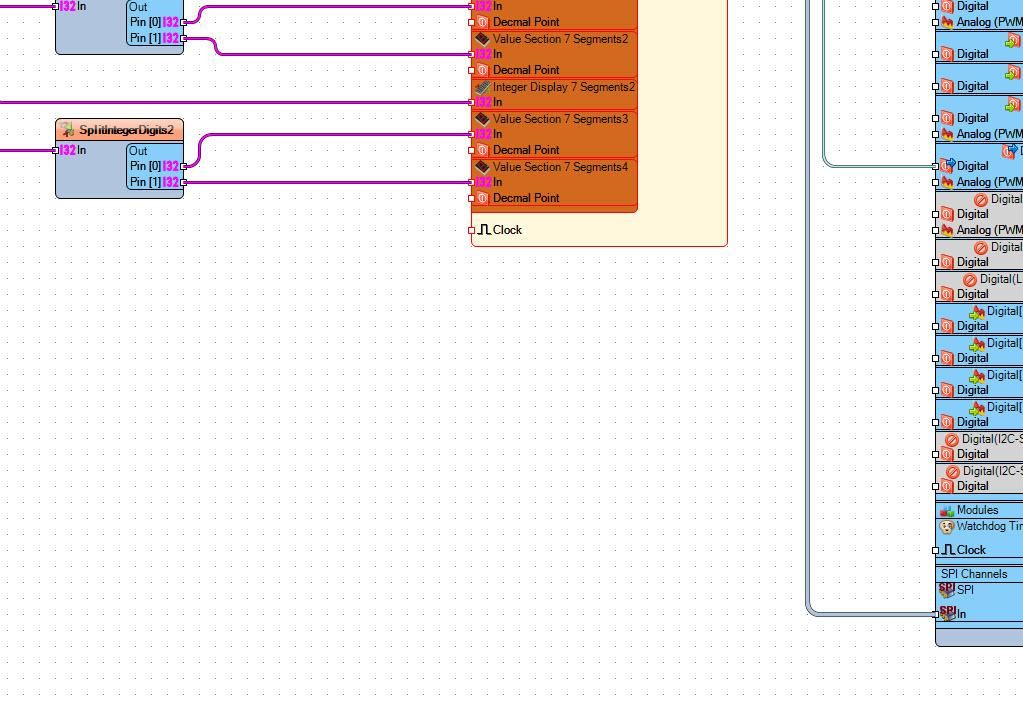
Connect "SplitIntegerDigits2" pin 0 to LedController1 > Value Section 7 Segments3 pin In
Connect "SplitIntegerDigits2" pin 1 to LedController1 > Value Section 7 Segments4 pin InConnect "DecodeDateTime1" pin Minute to LedController1 > Integer Display 7 Segments2 pin In
Connect "LedController1" pin Out SPI to Arduino Pin SPI In
Connect "LedController1" pin Chip Select to Arduino Digital Pin [10]
Generate, Compile, and Upload the Arduino Code
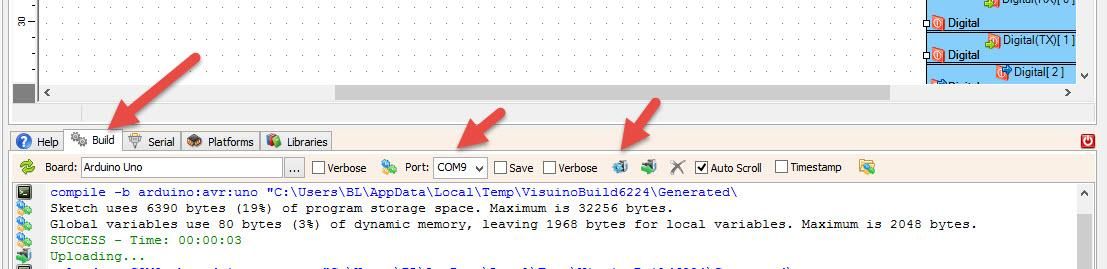
In Visuino, at the bottom, click on the "Build" tab, make sure the correct port is selected, then click on the "Compile/Build and Upload" button.
Play
If you power the Arduino module, the LED display will start to display a date and time.
Congratulations! You have completed your project with Visuino. Also attached is the Visuino project that I created for this. You can download it and open it in Visuino: https://www.visuino.eu